> For the complete documentation index, see [llms.txt](https://docs.hollaex.com/llms.txt). Markdown versions of documentation pages are available by appending `.md` to page URLs; this page is available as [Markdown](https://docs.hollaex.com/how-tos/profit-and-loss-tracking.md).
# Profit & Loss Tracking
P\&L Tracking allows users to see the performance over time of all of their exchange activity, keeping them in the know about what is working (and what is not)
## What is Profit & Loss Tracking?
Profit & Loss (P\&L) Tracking is an easy way for users to see a quick summary of the change in value of all assets over the exchange, all kept on a single, easy-to-understand screen.
With this, users can monitor and, if needed, alter any trading strategies they are using on your exchange.
***
## How to Set Up Profit & Loss Tracking
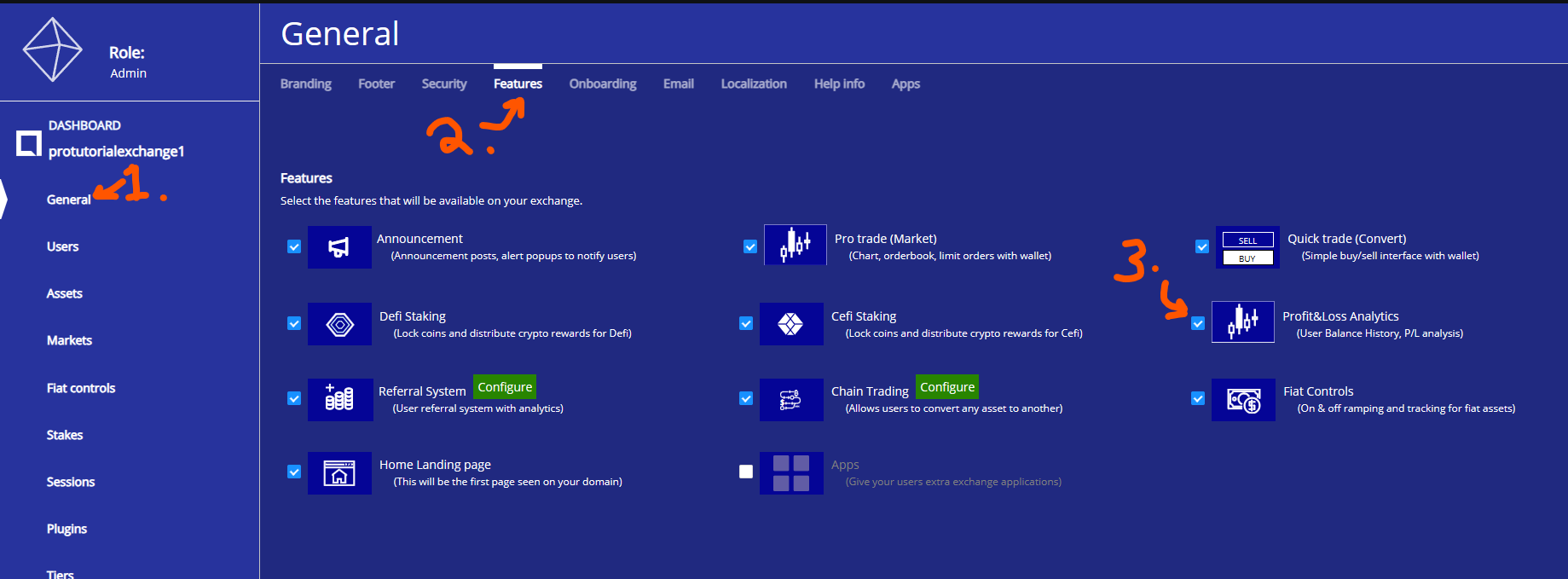
Enabling P\&L Tracing is easy. Navigate to *Operator Controls* as the exchange's administrator, then select *General* from the sidebar, and proceed to the *Features* tab. From here, click to enable *P\&L Tracking*. On refresh, the feature will be instantly accessible.
***
## Using the P\&L Tracker
The P\&L Tracker is likely the single easiest feature on the entire HollaEx exchange. By navigating to the navigation bar, hovering over *Wallet*, and then clicking the *Performance* option in the dropdown, they'll have used it the moment they look at the page.
The first tab is a simple line chart, showing the gains and losses over time. This will be affected by any deposits and withdrawals, and with the change over time of any assets' value they have in their wallets.
From here, they can change the time period to look at from a week up to 3 months, using the buttons above the chart.
The value shown in the top right will reflect the total summed value of all stored assets, crypto or fiat, converted into the native currency of your exchange. Hovering over any data point on the graph will show the value at that particular time.
The second tab, *Balance History*, simply lists all the assets stored and can be filtered to show the total amount of any assets from any date, going back three months, using the date selection on the top right.

.png?alt=media&token=980c3736-c1c7-43ec-ba66-335a908d291f)
.png?alt=media&token=9df4c341-2fff-420c-8194-36dd83074956)